Delta Lake History, Time Travel and Data Recovery
Spark tutorial · PySpark.in
Delta Lake History, Time Travel and Data Recovery
PRACTICAL LESSON | APACHE SPARK & DATABRICKS
Now that we've learned how to insert, update, and delete data in Delta Lake, let's explore some of its advanced features. We'll look at table history, data versioning, time travel, file cleanup using VACUUM, and recovering data from an earlier table version.
Time travel allows us to query data as it existed at a particular version or point in time. These features are especially useful when investigating data-quality issues, auditing changes, or recovering from an accidental modification.
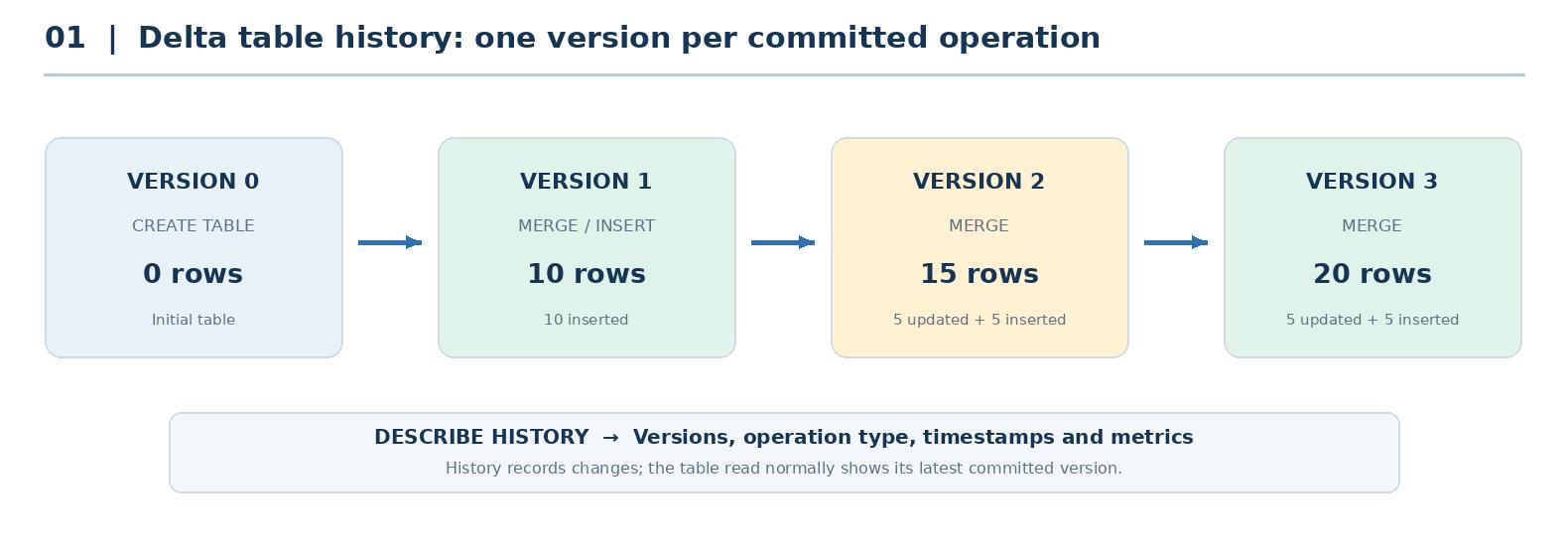
Figure 1. The four table versions created during the earlier driver MERGE examples.
1. View the History of a Delta Table
Let's start with the same drivers_merge table from the previous lesson. Delta Lake records information about committed operations, and we can inspect it with the DESCRIBE HISTORY command.
SQL — INSPECT DELTA TABLE HISTORY
``` hide DESCRIBE HISTORY f1_demo.drivers_merge; ``` |
The result includes the table version, timestamp, operation, and available operation metrics. In Databricks, it may also include information such as the notebook or cluster associated with an operation.
In our example, the initial CREATE TABLE operation produced version 0. The first MERGE inserted 10 drivers, creating version 1. The next two MERGE operations each updated five drivers and inserted five new drivers. The current table therefore contains 20 records in version 3.
Version | Operation | Changes | Records in table |
0 | CREATE TABLE | Initial empty table | 0 |
1 | MERGE | 10 inserted | 10 |
2 | MERGE | 5 updated, 5 inserted | 15 |
3 | MERGE | 5 updated, 5 inserted | 20 |
This history is valuable because it shows when the data changed and what kind of operation caused the change. Next, let's look at the data stored in earlier versions.
2. Query Earlier Versions Using SQL
Delta Lake supports time travel by version number. Rather than adding a WHERE clause, we place VERSION AS OF after the table name in the SQL query.
SQL — READ VERSION 1
``` hide SELECT * ``` |
Version 1 contains the first 10 records inserted on Day 1. These rows have their original forenames and surnames.
SQL — READ VERSION 2
``` hide SELECT * |
``` |
Version 2 contains 15 records. Drivers 1 through 5 remain unchanged, while drivers 6 through 10 have updated uppercase names. Drivers 11 through 15 are newly inserted records.
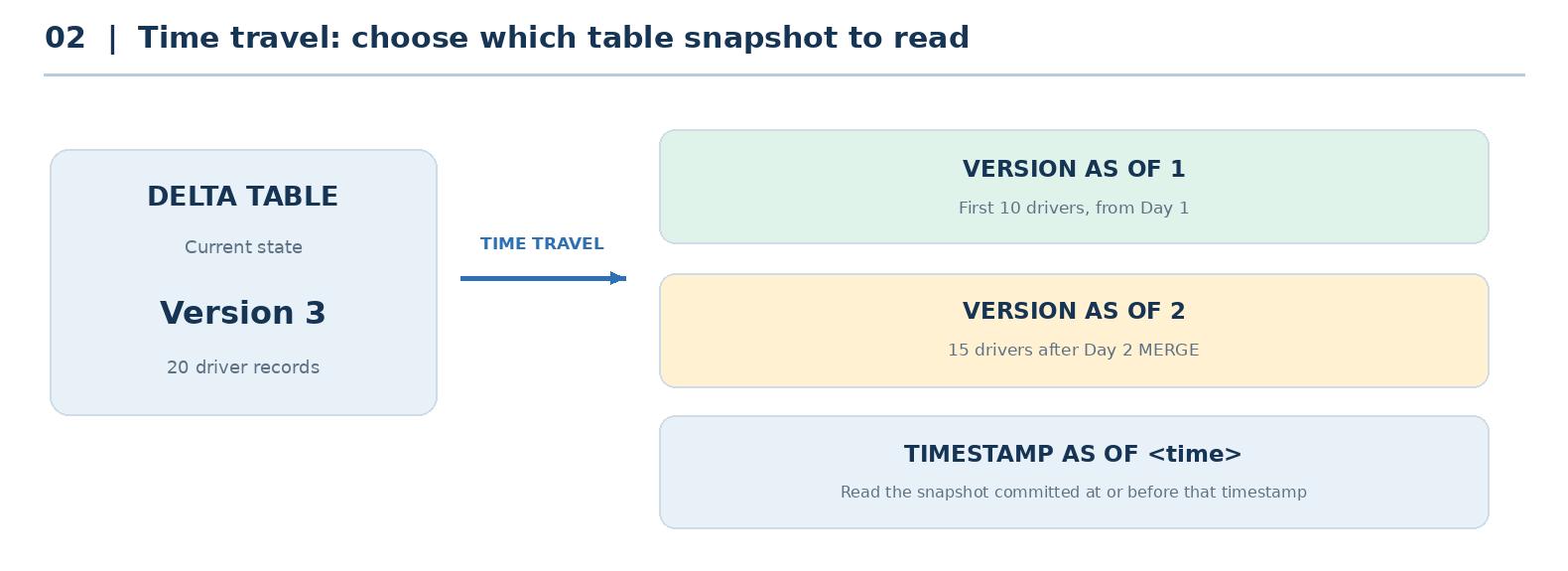
Figure 2. SQL time travel selects a historical Delta table snapshot.
2.1 Time Travel Using a Timestamp
We can also query a table as it existed at a specific timestamp. Use TIMESTAMP AS OF instead of VERSION AS OF, together with a timestamp from the table history.
SQL — READ A TABLE AT A SPECIFIC TIME
-- Replace with an actual timestamp from DESCRIBE HISTORY. hide SELECT * ``` |
For example, if you notice a problem in today's data load, you can inspect what the table looked like before that load. Delta Lake selects the latest committed table snapshot at or before the requested time, provided the required historical files are still available.
3. Perform Time Travel Using PySpark
So far, we've used SQL. We can read the same historical data into a Spark DataFrame by specifying versionAsOf or timestampAsOf in the DataFrame Reader.
PYSPARK — READ A PREVIOUS TABLE VERSION
``` hide # Use the actual storage location of the Delta table. ``` |
This should display the 10 records from version 1. To read by timestamp, change the option to timestampAsOf and supply the timestamp of the historical snapshot.
PYSPARK — READ DATA BY TIMESTAMP
``` hide # Replace the timestamp with one shown in table history. ``` |
NOTE The path shown above follows the course's demo mount layout. Check DESCRIBE DETAIL f1_demo.drivers_merge to confirm the table's actual storage location before running the examples. |
This is how Delta Lake lets us inspect an earlier version of the data, whether we're using SQL or PySpark.
4. VACUUM and Historical File Retention
Time travel is useful, but it raises an important question: what happens when an organization must permanently remove personal data? Under privacy regulations such as the GDPR, an individual may have a right to request erasure in applicable circumstances.
Deleting a row from a Delta table changes the current logical table state. Older physical data files may still exist for time travel or for ongoing readers. Delta Lake provides the VACUUM command to clean up data files that are no longer referenced by the table's current state and are older than the configured retention threshold.
SQL — RUN VACUUM WITH DEFAULT RETENTION
``` hide VACUUM f1_demo.drivers_merge; ``` |
In many Delta Lake setups, the default VACUUM retention period is seven days (168 hours). If all the changes were made yesterday, a normal VACUUM would not yet remove the old files, and the earlier versions might still be readable.
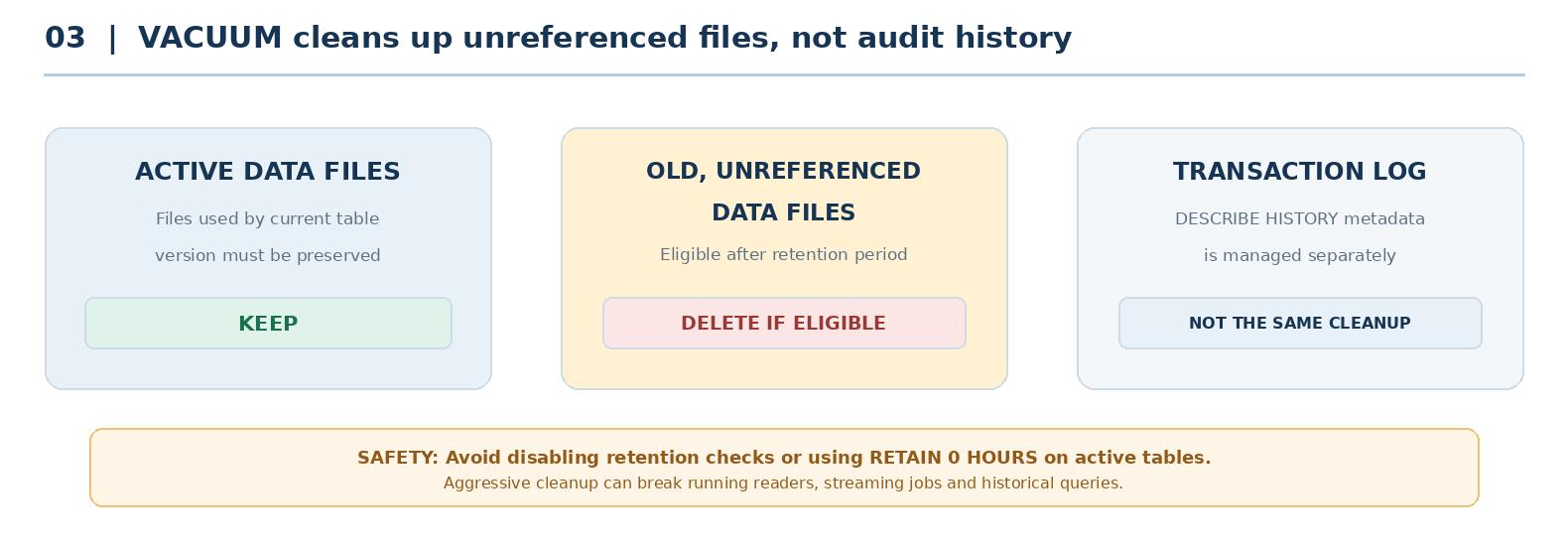
Figure 3. VACUUM deletes eligible old data files; log history is managed separately.
The original demonstration then explores RETAIN 0 HOURS and disabling the short-retention safety check. This removes eligible obsolete files immediately, which can make older table versions unreadable. However, that does not necessarily remove their entries from DESCRIBE HISTORY.
IMPORTANT SAFETY NOTE Do not run VACUUM RETAIN 0 HOURS or disable the retention safety check on active or production tables. Aggressive cleanup can break concurrent readers and streaming jobs. An erasure request also requires reviewing other retained copies, backups, logs, and applicable legal obligations; VACUUM alone is not a complete GDPR compliance process. |
After eligible historical files have been removed, a time-travel query that needs those files may fail because its file references can no longer be resolved. A normal query without a historical version still reads the current Delta table. DESCRIBE HISTORY may continue to show the recorded operations, even when the old data files are no longer accessible.
5. Restore an Accidentally Deleted Record
Let's now look at a common recovery situation. Suppose a new data load causes an unexpected change, or someone accidentally deletes a record. Delta history can help us recover the earlier data, as long as the required historical files are still available.
In this example, our current table contains 20 drivers. We will deliberately delete the row for driverId 1, then restore it from version 3 using a MERGE statement.
SQL — DELETE ONE DRIVER
``` hide DELETE FROM f1_demo.drivers_merge ``` |
After the DELETE completes, the latest table version contains 19 records. The earlier version 3 still represents the table before that deletion, with all 20 drivers.
SQL — COMPARE CURRENT DATA WITH VERSION 3
``` hide SELECT COUNT(*) AS current_count ``` |
We can now use version 3 as the source for a MERGE. The target is the latest table, while the source is the historical snapshot. We match records using driverId and insert the missing record when no match is found.
SQL — RESTORE THE MISSING ROW WITH MERGE
``` hide MERGE INTO f1_demo.drivers_merge AS tgt ``` |
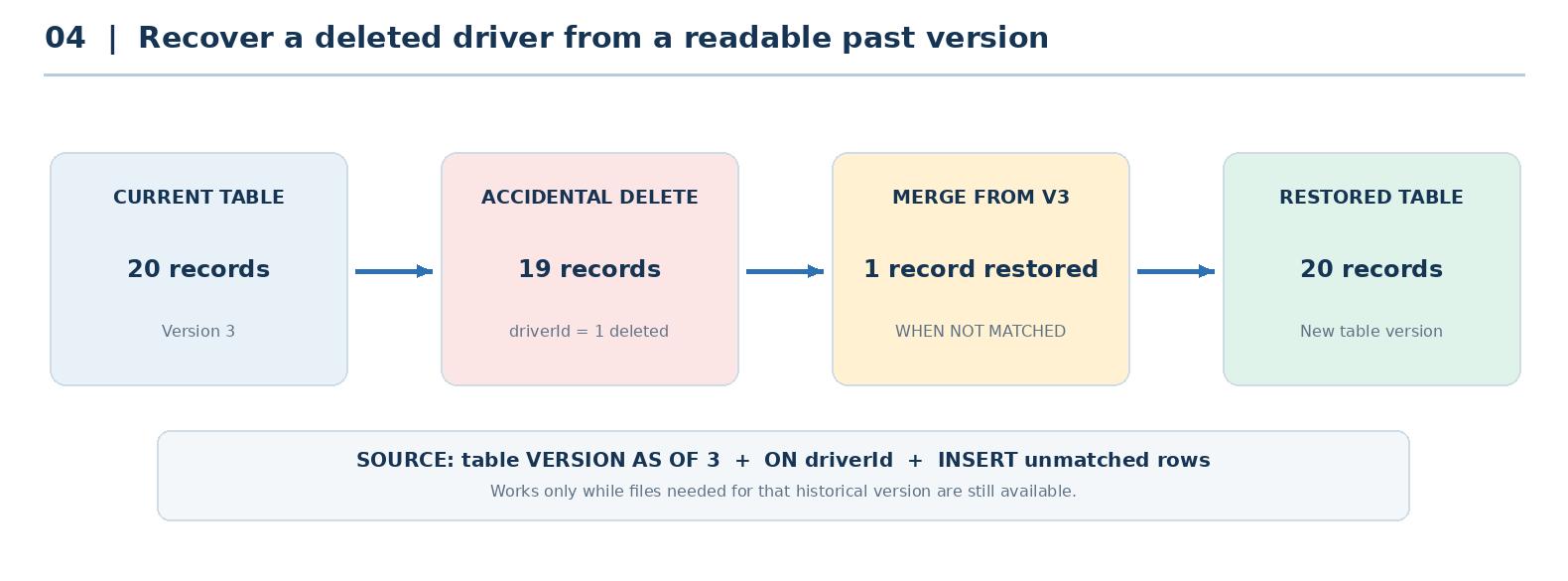
Figure 4. MERGE inserts the deleted driver from a previous readable version.
After executing the MERGE statement, the table should contain 20 records again, including driverId 1. Running DESCRIBE HISTORY shows the DELETE and the later MERGE as additional table versions.
SQL — VERIFY THE RESTORED DATA
``` hide SELECT * ``` |
The same approach can help recover earlier values when incorrect data has overwritten existing records. In that case, we would also need a WHEN MATCHED THEN UPDATE clause to restore the previous values, rather than only inserting missing rows.
NOTE This example assumes version 3 remains readable. The earlier VACUUM ran while version 3 was current; after the later DELETE, the files needed for version 3 can remain available until a subsequent cleanup. If those files have already been removed, this recovery query will fail. |
6. Lesson Summary
In this lesson, we've learned how to inspect the history of a Delta table and use time travel to read previous versions by version number or timestamp. We've also seen how to perform these queries using SQL and PySpark.
We explored how VACUUM cleans up eligible old data files, why historical reads can stop working after cleanup, and why data-retention settings must be handled carefully. Finally, we used a MERGE statement to restore a deleted record from a previous table version.
These capabilities make Delta Lake useful for auditing, investigating data-quality problems, and recovering from accidental changes. That's the end of this lesson. I'll see you in the next one.
More Spark tutorials
- Apache Spark Runtime Architecture
- Introduction to RDD
- Actions vs Transformations
- Lazy Evaluation in PySpark
- DataFrame Operations in PySpark
- Spark SQL Basics
All tutorials · Try the free PySpark compiler · Practice challenges