Upsert Data Using MERGE in Delta Lake
Spark tutorial · PySpark.in
Upsert Data Using MERGE in Delta Lake
PRACTICAL LESSON | APACHE SPARK & DATABRICKS
In this lesson, we're going to look at how to upsert data into a Delta table using MERGE statements.
MERGE may be new to you, and it can take a little time to understand, but it is a very powerful operation. It allows us to insert new records, update existing records when new information arrives, and—when the appropriate conditions are defined—delete matching records. These actions can be handled within a single MERGE statement.
If you've worked with Data Warehouses, you may already be familiar with this approach. If not, we'll go through a practical example using both SQL and PySpark so that the process is easy to follow.
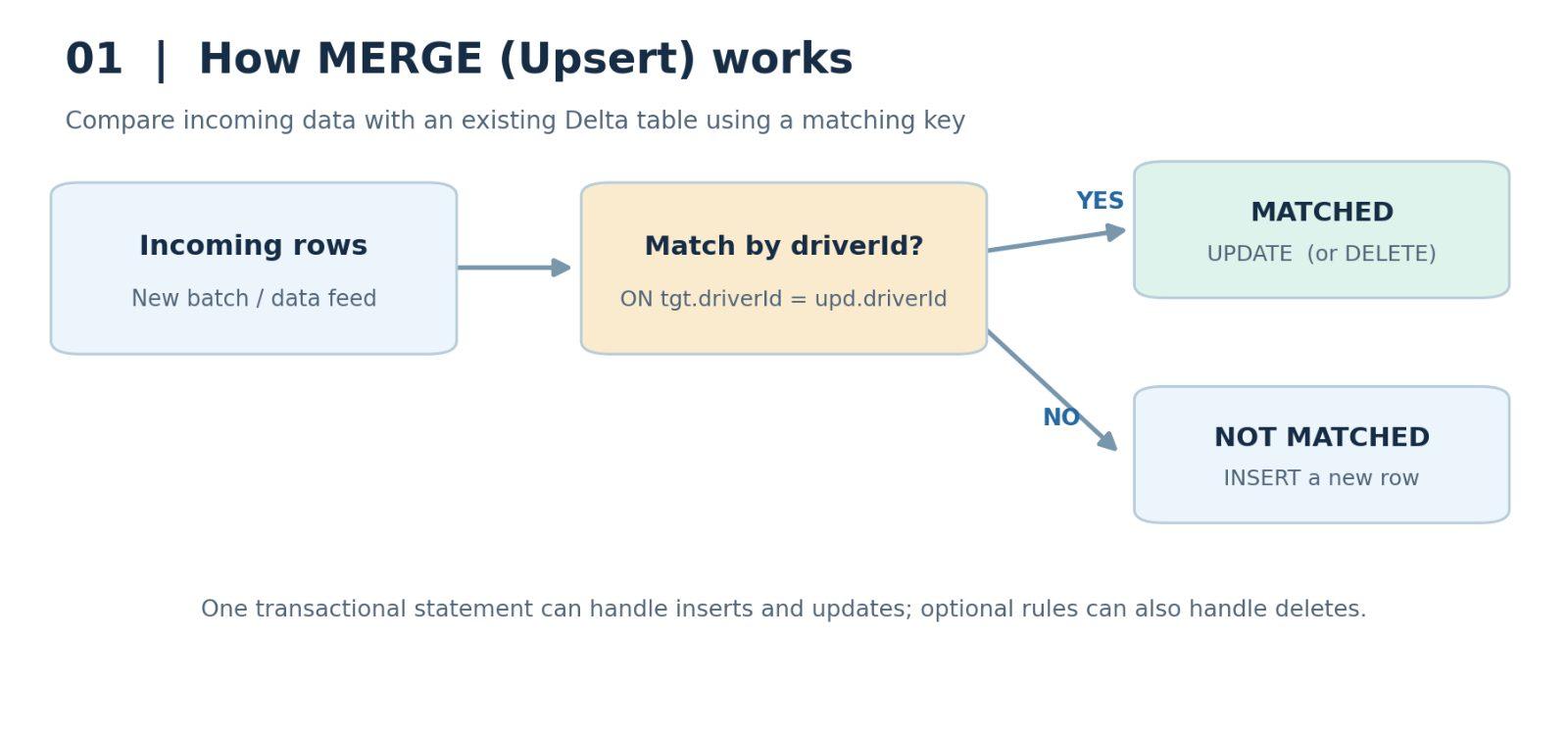
Figure 1. The MERGE decision process for matched and unmatched records.
1. Prepare Three Days of Driver Data
To demonstrate MERGE, we'll create three DataFrames that represent driver records received on three consecutive days. We'll continue using the Formula 1 drivers dataset from the previous lessons.
We'll use driverId as the matching key, together with each driver's date of birth (dob), forename, and surname. The examples below assume that a Spark DataFrame called drivers_df already contains these columns.
PYTHON — PREPARE THE THREE INCOMING BATCHES
``` hide from pyspark.sql import functions as F cols = ["driverId", "dob", "forename", "surname"] drivers_day1_df = drivers_df.filter(F.col("driverId").between(1, 10)).select(*cols) drivers_day2_df = (drivers_df.filter(F.col("driverId").between(6, 15)) .select(*cols) .withColumn("forename", F.upper("forename")) .withColumn("surname", F.upper("surname"))) drivers_day3_df = (drivers_df.filter( F.col("driverId").between(1, 5) | F.col("driverId").between(16, 20)) .select(*cols) .withColumn("forename", F.upper("forename")) .withColumn("surname", F.upper("surname"))) ``` |
NOTE Use the same drivers data source from the previous lesson. This example assumes it contains one source record per driverId and that dob has a suitable date type. |
1.1 Day 1 — The Initial Records
For Day 1, we're selecting the first 10 drivers, with driver IDs from 1 to 10. We can display the DataFrame to confirm that it contains 10 records and includes each driver's forename and surname.
PYTHON — INSPECT DAY 1
``` hide display(drivers_day1_df) ``` |
Because the Delta table will initially be empty, all 10 Day 1 records should be inserted.
1.2 Day 2 — Existing and New Records
On Day 2, we receive driver IDs 6 through 15. IDs 6 through 10 already exist from Day 1, while IDs 11 through 15 are new.
When we merge this batch, driver IDs 1 through 5 should remain unchanged, IDs 6 through 10 should be updated, and IDs 11 through 15 should be inserted.
To make the updates visible, we've converted the Day 2 forenames and surnames to uppercase.
PYTHON — INSPECT DAY 2
``` hide display(drivers_day2_df) ``` |
1.3 Day 3 — Another Batch of Updates and Inserts
The Day 3 DataFrame contains driver IDs 1 through 5 and 16 through 20. The first five records already exist and should be updated; IDs 16 through 20 are new and should be inserted. The names in this batch are also in uppercase so that the changes are easy to recognize.
We'll demonstrate the first two batches using SQL and the Day 3 batch using the Python DeltaTable API.
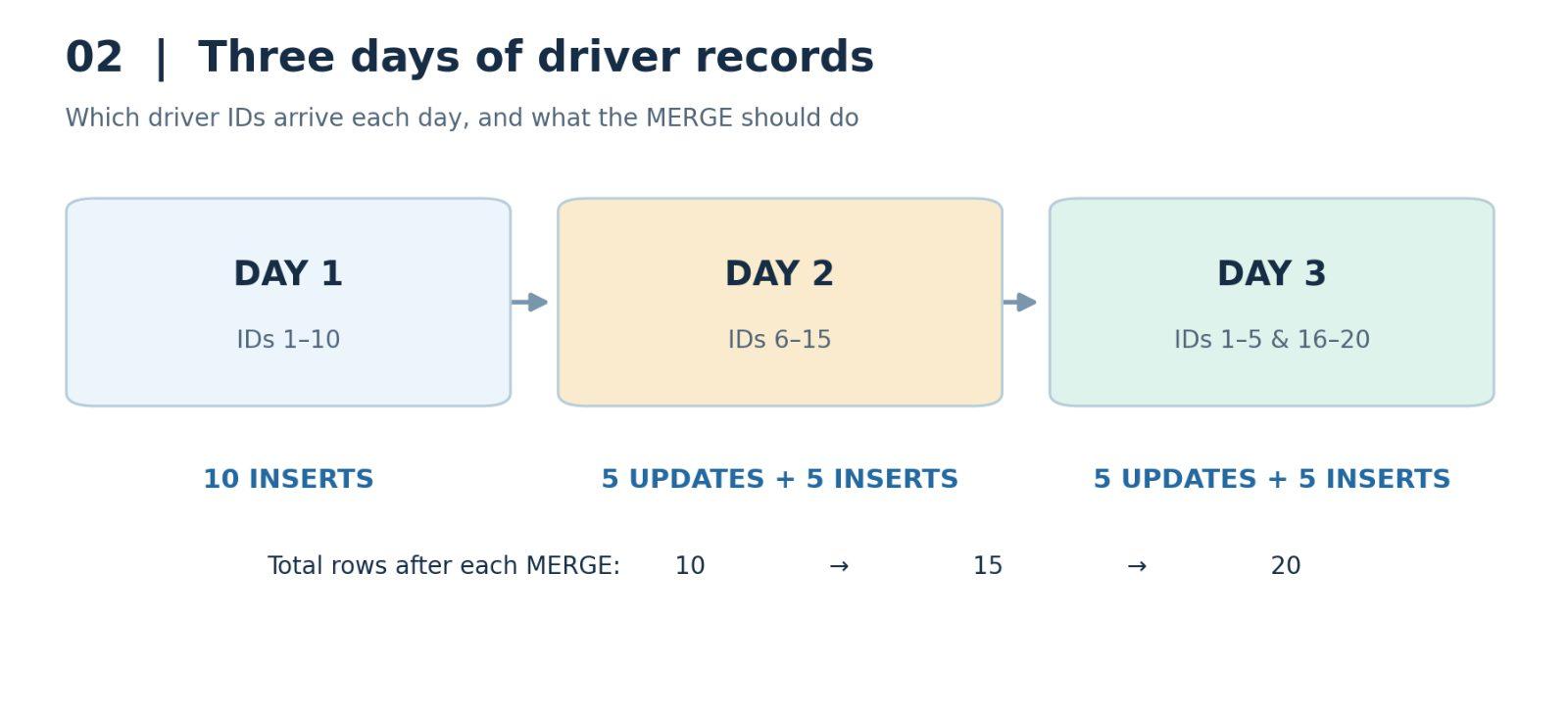
Figure 2. Incoming driver ID ranges and the expected results on each day.
2. Register the SQL Views and Create the Delta Table
First, we'll create temporary views for the Day 1 and Day 2 DataFrames. The SQL MERGE statements will refer to these views as their incoming source datasets. Day 3 doesn't need a temporary view because we'll use its DataFrame directly from Python.
PYTHON — CREATE TEMPORARY VIEWS FOR SQL
``` hide drivers_day1_df.createOrReplaceTempView("drivers_day1") drivers_day2_df.createOrReplaceTempView("drivers_day2") ``` |
Next, we need a Delta table to receive the incoming records. We'll call it f1_demo.drivers_merge. The table contains driverId, dob, forename, and surname, plus created_date and updated_date timestamps.
The created_date field records when a driver row was first inserted. The updated_date field records when a matching row was updated. These timestamps make it easier to see what the MERGE statement has done.
Some Databricks environments use Delta as the default table format. We'll specify USING DELTA explicitly so the intended format is clear.
SQL — CREATE THE TARGET DELTA TABLE
``` hide CREATE TABLE IF NOT EXISTS f1_demo.drivers_merge ( driverId INT, dob DATE, forename STRING, surname STRING, created_date TIMESTAMP, updated_date TIMESTAMP ) USING DELTA; `` |
NOTE Create the f1_demo database first if it does not exist. The target table must exist before the SQL MERGE can run; otherwise, the command will fail. |
3. Understand the SQL MERGE Statement
In the Delta Lake documentation, MERGE appears under the operations for updating, deleting, and merging table data.
A MERGE INTO statement identifies the target table, a USING clause provides the incoming source data, and an ON clause defines how the records are matched. WHEN MATCHED controls updates or deletes; WHEN NOT MATCHED controls inserts.
For this example, our target alias is tgt, our incoming data alias is upd, and the matching condition compares driverId in both datasets.
3.1 Day 1 — Insert Records Using SQL
Let's begin with the Day 1 temporary view. In the matched branch, we'll update dob, forename, surname, and updated_date. In the unmatched branch, we'll insert all driver fields and set created_date to the current timestamp. We won't populate updated_date for newly inserted rows.
SQL — MERGE DAY 1 INTO THE DELTA TABLE
``` hide MERGE INTO f1_demo.drivers_merge AS tgt USING drivers_day1 AS upd ON tgt.driverId = upd.driverId WHEN MATCHED THEN UPDATE SET tgt.dob = upd.dob, tgt.forename = upd.forename, tgt.surname = upd.surname, tgt.updated_date = current_timestamp() WHEN NOT MATCHED THEN INSERT (driverId, dob, forename, surname, created_date) VALUES (upd.driverId, upd.dob, upd.forename, upd.surname, current_timestamp()); ``` |
After executing the statement, we can query the table to confirm the results.
SQL — VERIFY THE FIRST BATCH
``` hide SELECT driverId, forename, surname, created_date, updated_date FROM f1_demo.drivers_merge ORDER BY driverId; ``` |
We should see 10 rows, all with created_date values and no updated_date values, because each record was inserted for the first time.
3.2 Day 2 — Update and Insert in One Statement
For Day 2, we'll run the same SQL MERGE statement, but change the source view from drivers_day1 to drivers_day2.
SQL — MERGE DAY 2 INTO THE SAME TABLE
``` hide MERGE INTO f1_demo.drivers_merge AS tgt USING drivers_day2 AS upd ON tgt.driverId = upd.driverId WHEN MATCHED THEN UPDATE SET tgt.dob = upd.dob, tgt.forename = upd.forename, tgt.surname = upd.surname, tgt.updated_date = current_timestamp() WHEN NOT MATCHED THEN INSERT (driverId, dob, forename, surname, created_date) VALUES (upd.driverId, upd.dob, upd.forename, upd.surname, current_timestamp()); ``` |
Now query the table again. Driver IDs 1 through 5 should have no updated_date because they received no Day 2 data. IDs 6 through 10 should have uppercase names and an updated_date timestamp. IDs 11 through 15 should be new records with created_date values and no updated_date.
The table should now contain 15 driver records. We have handled updates and inserts in one statement without duplicating the existing drivers.
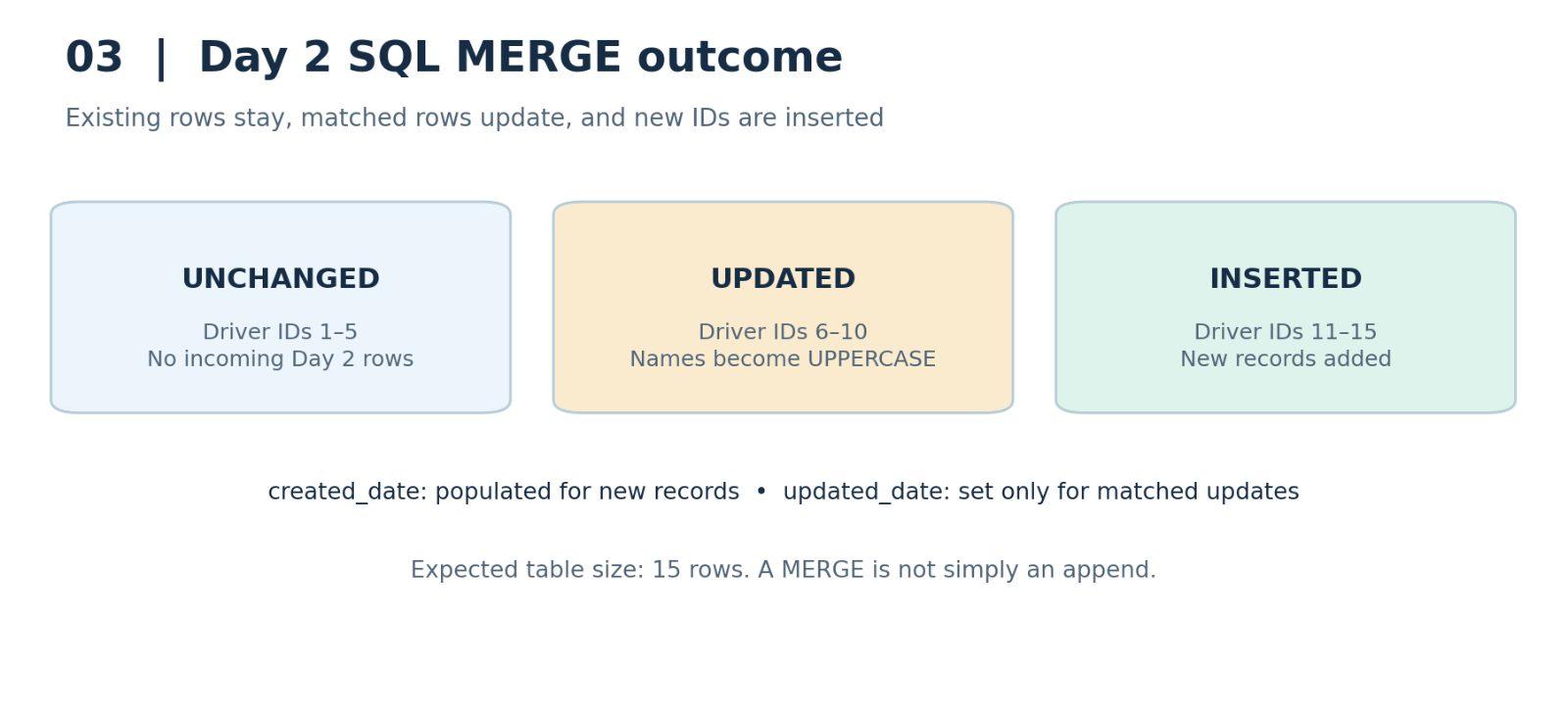
Figure 3. Day 2 SQL MERGE leaves five rows unchanged, updates five, and inserts five.
4. Day 3 — Perform MERGE Using PySpark
Next, we'll process the third batch using Python rather than SQL. The DeltaTable API provides a merge method with equivalent matching, updating, and inserting behavior.
First, import DeltaTable. We can reference the existing Delta table by its registered name using forName. In environments that use a table path, we could use forPath instead.
PYTHON — REFERENCE THE TARGET DELTA TABLE
``` hide from delta.tables import DeltaTable from pyspark.sql.functions import current_timestamp target = DeltaTable.forName(spark, "f1_demo.drivers_merge") ``` |
We'll give the target table the alias tgt and the Day 3 DataFrame the alias upd. The matching condition will again compare driverId. For matched drivers, we'll update the personal details and updated_date; for new drivers, we'll insert the details and created_date.
PYTHON — MERGE THE DAY 3 DATAFRAME
``` hide ( target.alias("tgt") .merge(drivers_day3_df.alias("upd"), "tgt.driverId = upd.driverId") .whenMatchedUpdate(set={ "dob": "upd.dob", "forename": "upd.forename", "surname": "upd.surname", "updated_date": current_timestamp() }) .whenNotMatchedInsert(values={ "driverId": "upd.driverId", "dob": "upd.dob", "forename": "upd.forename", "surname": "upd.surname", "created_date": current_timestamp() }) .execute() ) ``` |
Before running this code, let's recap the expected outcome. Driver IDs 1 through 5 already exist, so they will be updated with the incoming uppercase details. Driver IDs 16 through 20 do not yet exist, so they will be inserted.
After the MERGE finishes, we can verify the results with another SQL query.
SQL — VERIFY THE FINAL TABLE
``` hide SELECT driverId, forename, surname, created_date, updated_date FROM f1_demo.drivers_merge ORDER BY driverId; ``` |
We should now have 20 records. The first five driver records should show updated names and updated_date timestamps, while IDs 16 through 20 should appear as newly created records.
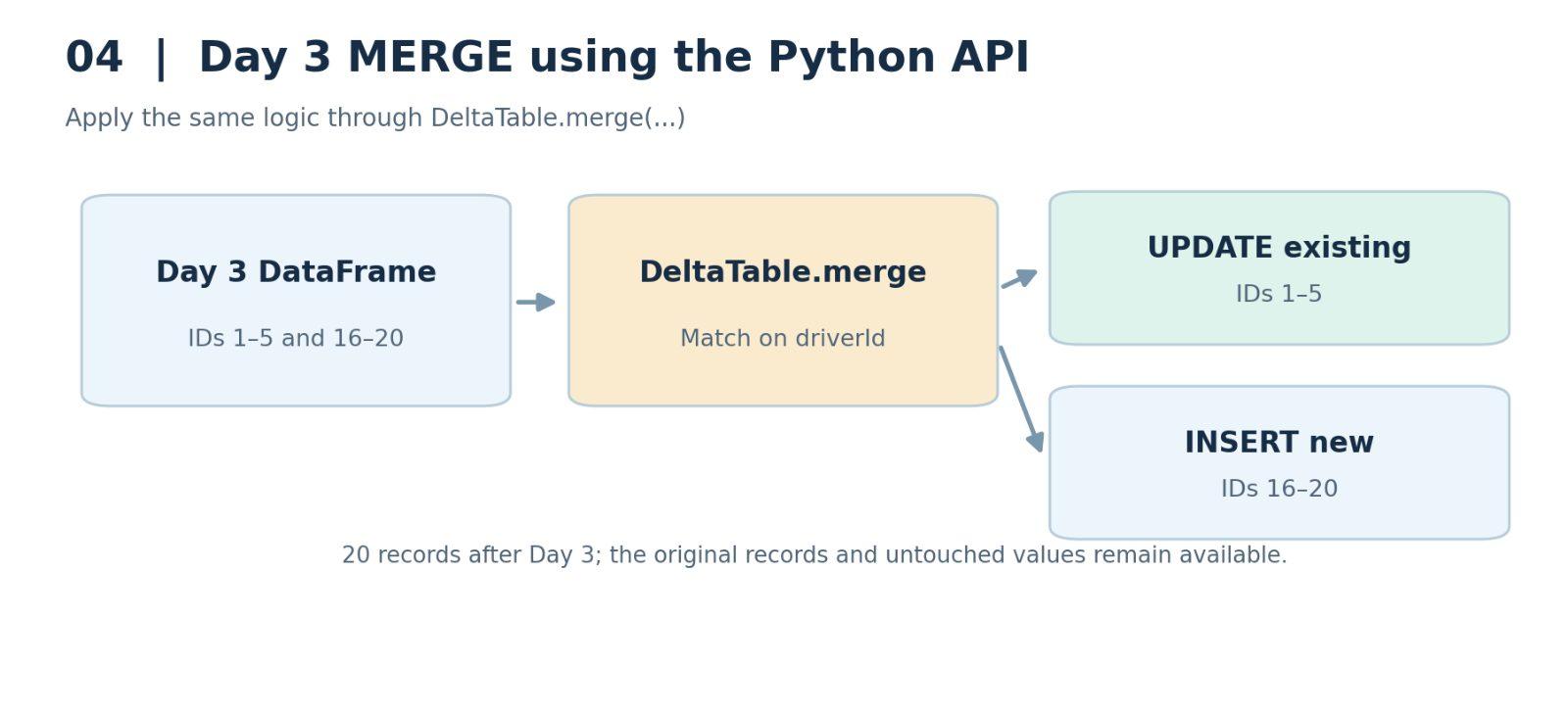
Figure 4. The Day 3 PySpark MERGE updates five existing drivers and inserts five new ones.
5. Lesson Summary
MERGE statements are very powerful because they can manage new and existing records together. A system that receives inserts, updates, and delete requests can process those changes through MERGE rules in Delta Lake.
In this lesson, we used SQL for the first two driver-data batches and the Python DeltaTable API for the third. Both approaches matched records by driverId, updated existing rows, and inserted new ones. We also used created_date and updated_date to track when records were inserted or modified.
Although MERGE supports conditional deletes, the three-day example used only UPDATE and INSERT actions. Adding a delete action requires an explicit rule to identify which matched records should be removed.
I hope you now have a good understanding of how MERGE works in Delta Lake. That's the end of this lesson, and I'll see you in the next one.
More Spark tutorials
- Apache Spark Runtime Architecture
- Introduction to RDD
- Actions vs Transformations
- Lazy Evaluation in PySpark
- DataFrame Operations in PySpark
- Spark SQL Basics
All tutorials · Try the free PySpark compiler · Practice challenges