Read and Write Delta Lake
Spark tutorial · PySpark.in
Reading and Writing Data with Delta Lake
PRACTICAL LESSON | APACHE SPARK & DATABRICKS
Now that we have a good understanding of Delta Lake, let's look at some practical demonstrations of how to read and write data using Delta Lake.
We'll read data from our raw data source and write it to Delta Lake. As we learned while working with Parquet and Spark tables, we can create both managed and external tables. The same concepts apply when working with Delta Lake.
In this lesson, we'll create a managed table and an external table, read the data back using SQL, and also read the Delta files directly without querying a registered table. We'll finish by writing partitioned data. So, let's get started.
1. Create a Demo Container and Mount Point
First, I want to create a separate demo container in our storage account so that we don't interfere with the existing project. I also want to create a demo database.
In Storage Explorer, create a new Blob container and name it demo. In this example, Databricks uses a mount point to access that container, so we need to create a mount.
We've already prepared most of the required scripts. Open the setup script in another tab, make sure the required functions and variables have been defined, and copy the mount statement. Add a new line for the demo container and execute it to create the mount point.
Once the mount is created, check that it can be accessed. The demo path is under the Formula1dl mount. When we list the container's contents, an empty list is returned. That's expected because we haven't written anything to it yet.
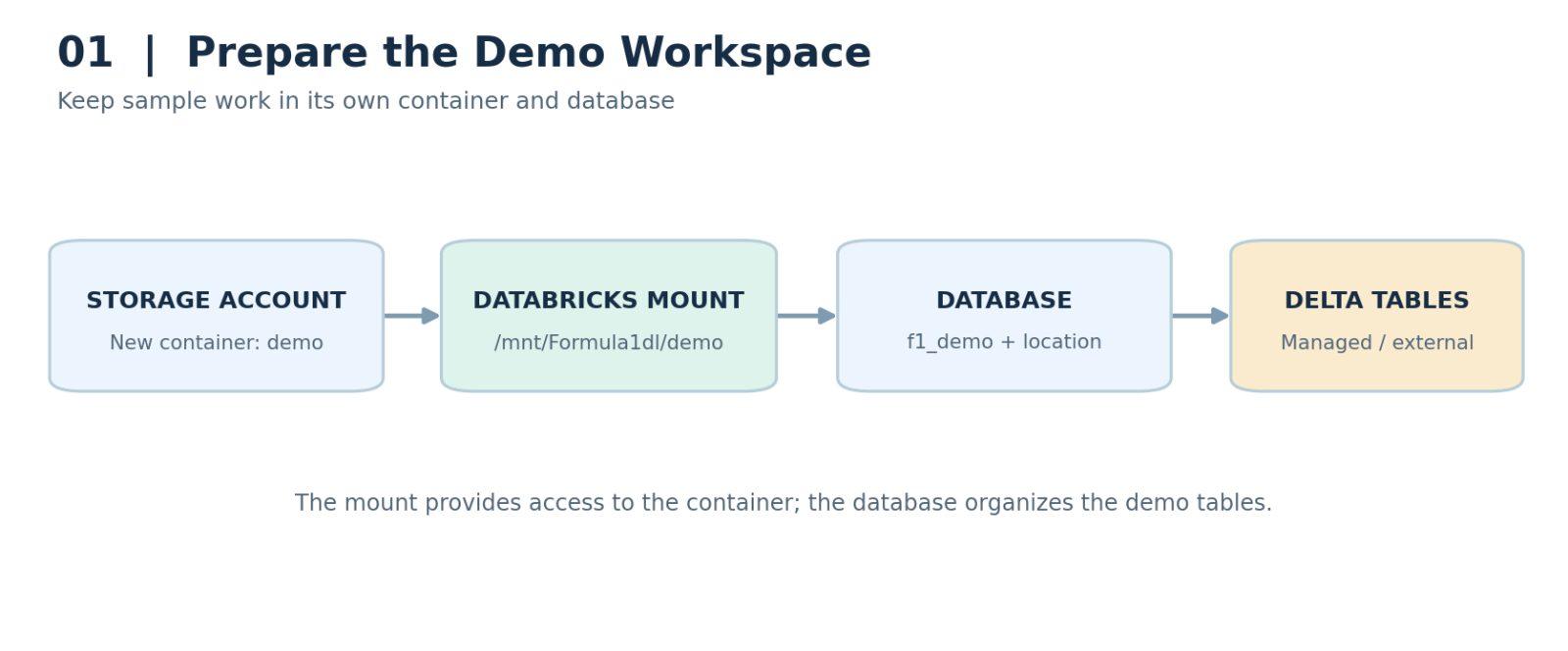
Figure 1. Demo storage container, mount point, database, and Delta tables.
2. Create the Demo Database
Next, let's create the database. Open a SQL cell in Databricks and create a database named f1_demo.
Specify the database location using our demo mount point. In the metastore setup used in this lesson, this ensures that managed tables created under this database use the specified storage location.
SQL EXAMPLE
``` hide CREATE DATABASE IF NOT EXISTS f1_demo LOCATION '/mnt/Formula1dl/demo'; ``` |
Now that the demo database has been created, we're ready to read the source data and write it in Delta format.
3. Read the Raw Results Data
We'll use the Formula 1 results file as our source. Rather than reading the cutover file, we'll read the results for Week 1 of 2021, which contains about 20 records. That's a manageable number for this demonstration.
For simplicity, I'm letting Spark infer the schema instead of defining the column names and data types explicitly. That's fine for a demo, although in a production project I would normally specify the schema.
Read the results file from the raw container into a Spark DataFrame. Once the read completes, we can write that DataFrame to Delta Lake.
PYSPARK ILLUSTRATION — SUPPLY YOUR RAW FILE PATH
``` hide results_df = ( spark.read .option("header", True) .option("inferSchema", True) .csv(raw_results_path) ) ``` |
4. Find the Delta Lake Documentation
Before writing the data, let's look at some useful documentation. Delta Lake provides more functionality than we can cover in this lesson.
The open-source Delta Lake documentation is available at docs.delta.io. It includes a Quickstart, instructions for reading and writing data, and examples covering DELETE, UPDATE, MERGE, utility commands, and constraints.
You can also use the Databricks and Microsoft Azure Databricks documentation. Although some pages are organized by cloud provider, many of the fundamental Delta Lake concepts are the same.
In the write-to-table documentation, you'll find SQL statements for inserting data and Python DataFrame examples. The write mode can be append, which adds new data, or overwrite, which replaces the existing table data.
5. Write Data to a Managed Delta Table
Let's start with a managed table. The DataFrameWriter method saveAsTable writes the data and registers the table at the same time.
This is similar to writing Parquet with Spark. The main difference in our code is that we specify delta rather than parquet as the format.
Because this is a demo, we'll use overwrite mode and save the DataFrame as f1_demo.results_managed.
PYSPARK — WRITE A MANAGED TABLE
``` hide results_df.write.format("delta").mode("overwrite")\ .saveAsTable("f1_demo.results_managed") ``` |
After the table is created, we can read its data in a SQL cell. The query should return the same 20 result records that we loaded from the raw file.
SQL — READ THE MANAGED TABLE
``` hide SELECT * FROM f1_demo.results_managed; ``` |
That's how we write data to a managed Delta table. If we need to add more records later, we can use append mode instead of overwrite.
6. Write Data to an External Delta Location
Now let's write data to a specific file location rather than registering a table immediately.
Instead of saveAsTable, we'll use the save method and supply a storage path. In our demo, that path is within the mount point, in a folder called results_external.
PYSPARK — WRITE DELTA FILES AT A PATH
``` hide results_df.write.format("delta").mode("overwrite")\ .save("/mnt/Formula1dl/demo/results_external") ``` |
When the write is complete, open Storage Explorer. You should see the managed-table data and the newly created results_external folder.
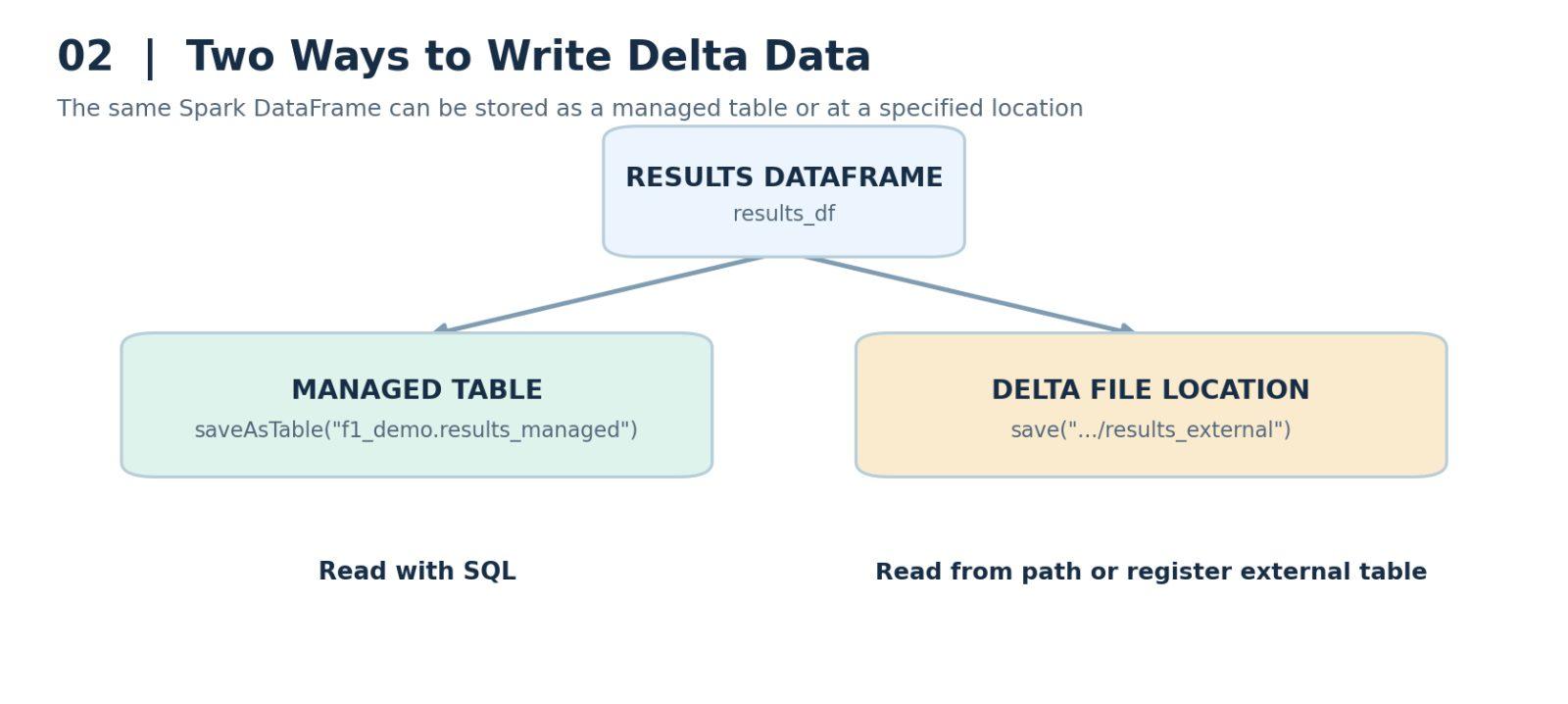
Figure 2. Managed tables and path-based Delta writes use different write methods.
6.1 Create an External Table over the Files
As with Parquet, we can either read the data directly from the storage location or register a table over it. Let's create an external table.
Use a SQL CREATE TABLE statement, specify DELTA as the format, and provide the location of the existing data. For this demonstration, we'll let Delta Lake identify the schema instead of listing every column and data type manually.
SQL — CREATE AN EXTERNAL DELTA TABLE
``` hide CREATE TABLE IF NOT EXISTS f1_demo.results_external USING DELTA LOCATION '/mnt/Formula1dl/demo/results_external'; ``` |
Now we can read the registered external table using SQL, just as we did with the managed table.
SQL — READ THE EXTERNAL TABLE
``` hide SELECT * FROM f1_demo.results_external; ``` |
7. Read Delta Files Directly with Spark
What if we don't want to create a table at all and simply want to read the files directly?
We can use the Spark DataFrame Reader, much as we would for Parquet. This time, set the format to delta and use the load method with the directory path.
PYSPARK — READ FROM A DELTA LOCATION
``` hide results_external_df = ( spark.read.format("delta") .load("/mnt/Formula1dl/demo/results_external") ) display(results_external_df) ``` |
This reads the Delta data at that external location into a DataFrame. When we display it, we should see the same 20 records as before.
So far, we've written data into Delta Lake and read it back both through registered tables and directly from the storage path.
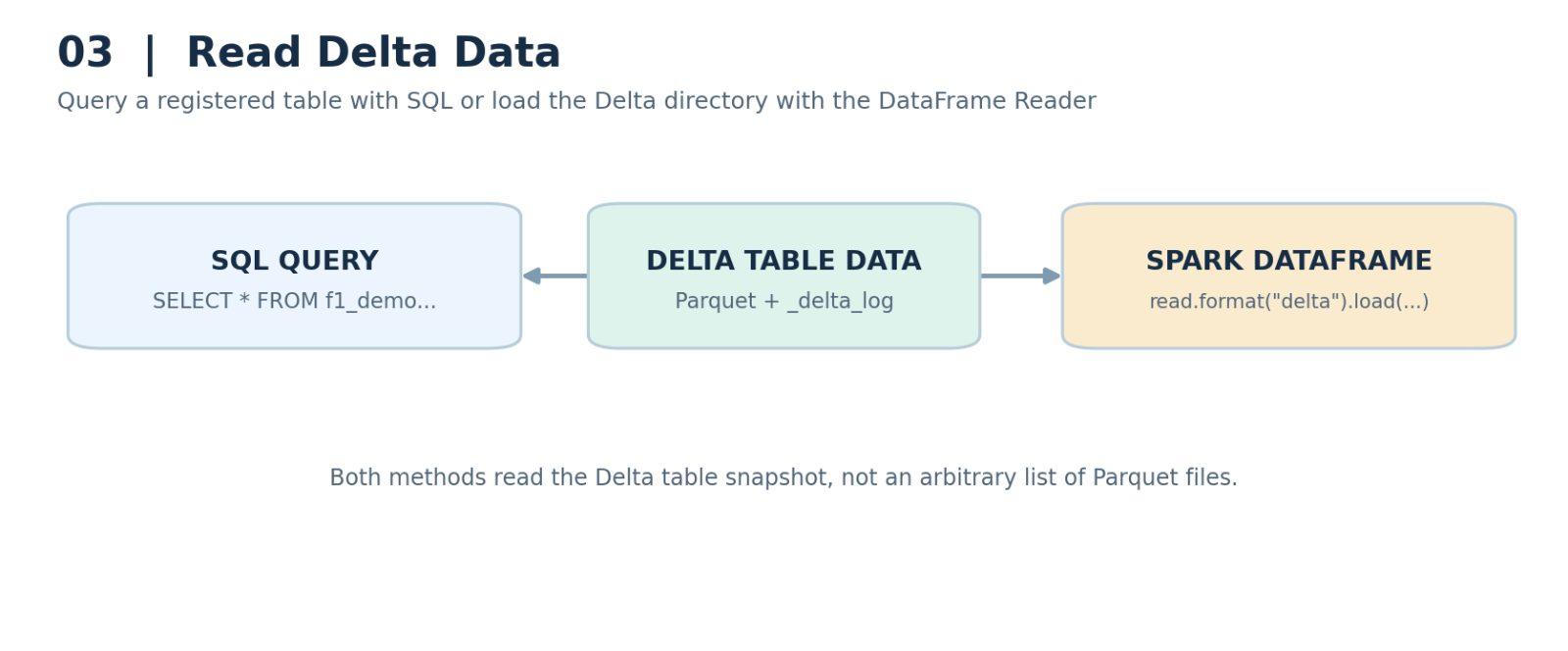
Figure 3. Querying the Delta table and reading its storage path.
8. Write a Partitioned Delta Table
There's one more feature I want to demonstrate: writing data into partition folders, just as we did previously with Parquet.
To partition the data while writing it, we use the partitionBy method. We need to choose a suitable partition column.
Partitioning by raceId would not be useful here because the current dataset contains only one race. Instead, we'll use constructorId, which represents the teams.
Each of the 10 teams has two drivers in this sample, giving us 20 records. Partitioning by constructorId therefore produces 10 partitions.
Let's create a new Delta table named f1_demo.results_partitioned using constructorId as the partition column.
PYSPARK — CREATE A PARTITIONED DELTA TABLE
``` hide results_df.write.format("delta").mode("overwrite")\ .partitionBy("constructorId")\ .saveAsTable("f1_demo.results_partitioned") ``` |
After creating the table, we can check the partitions with the SHOW PARTITIONS SQL command.
SQL — INSPECT THE PARTITIONS
``` hide SHOW PARTITIONS f1_demo.results_partitioned; ``` |
The output should show 10 constructorId partition values. We can confirm that in Storage Explorer as well by opening the results_partitioned location and checking its partition folders.
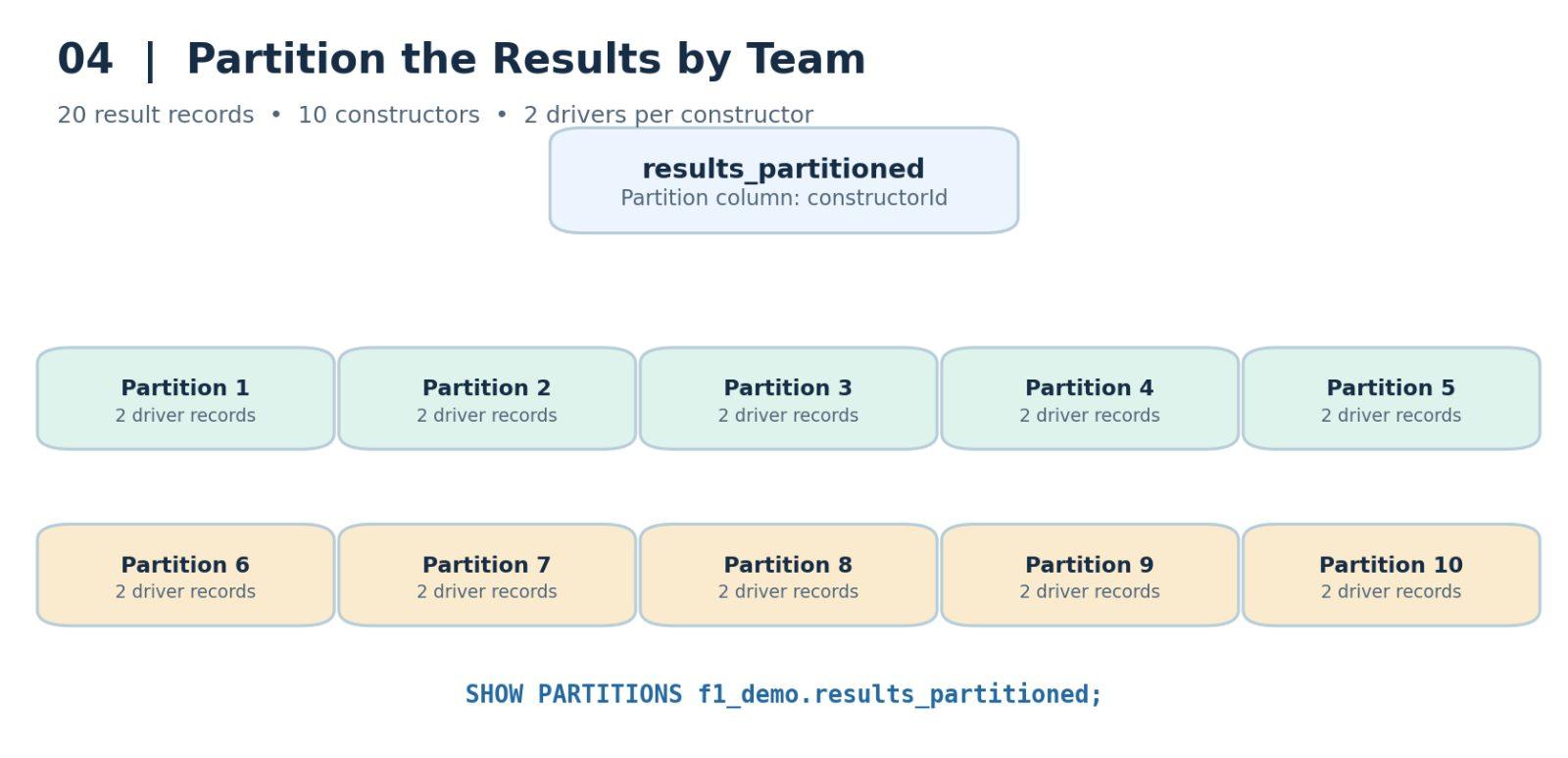
Figure 4. Illustration of 10 team-based partitions, with two records each.
That's how to partition data while writing it to Delta Lake.
9. Conclusion
In this lesson, we've learned how to read data from Delta Lake and write data to Delta Lake. We've created managed and external tables, read data using SQL and Spark DataFrame APIs, and written a partitioned Delta table.
That brings us to the end of this lesson. I'll see you in the next one.
More Spark tutorials
- Apache Spark Runtime Architecture
- Introduction to RDD
- Actions vs Transformations
- Lazy Evaluation in PySpark
- DataFrame Operations in PySpark
- Spark SQL Basics
All tutorials · Try the free PySpark compiler · Practice challenges